Note: I was not compensated in any way to write this review nor will I receive any income if you purchase anything linked on this post. I’m just sharing this because I wish I had found a post like this while I was debating my own purchase.
The Kindle Scribe is an e-reader, like the rest of the Kindle line, but also a digital notebook. Not only do you have access to all of the typical Kindle functions (including accessibility features and access to your ebook and Audible library), you also have an entire section of the device to create notebooks with various page style templates and write/draw all over them.
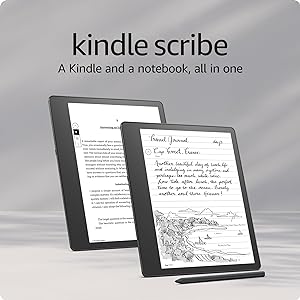
This is a review of the 1st generation Kindle Scribe and it only reflects updates and features added as the posting date above. Future generations and updates are bound to have different features and glitches, not discussed here.

I purchased a bundle with the 32 GB Kindle Scribe, Premium Pen, a magnetic leather folio cover, and a power adapter. If you purchase a Scribe on it’s own, you select the Basic or Premium Pen and the storage capacity. You don’t receive a cover or adapter.
I’m a teacher librarian who loves reading and writing, so I’m obsessed with my Kindle Scribe. I use it multiple times a day for multiple purposes.
But is the Kindle Scribe right for you? It’s in its earliest days and won’t be the right fit for everyone. Let’s dive into some of the perks and problems of the Kindle Scribe to help you decide if you want to spend ±$400 on this bad boy.
Perk: Handwriting to text conversion
This feature was the main reason I decided to take a chance on the Kindle Scribe. I prefer to write by hand when taking notes and in the earliest stages of the creative process. Research suggests that taking notes by hand helps you retain information, and for me, handwriting supports my creative flow and minimizes distractions.
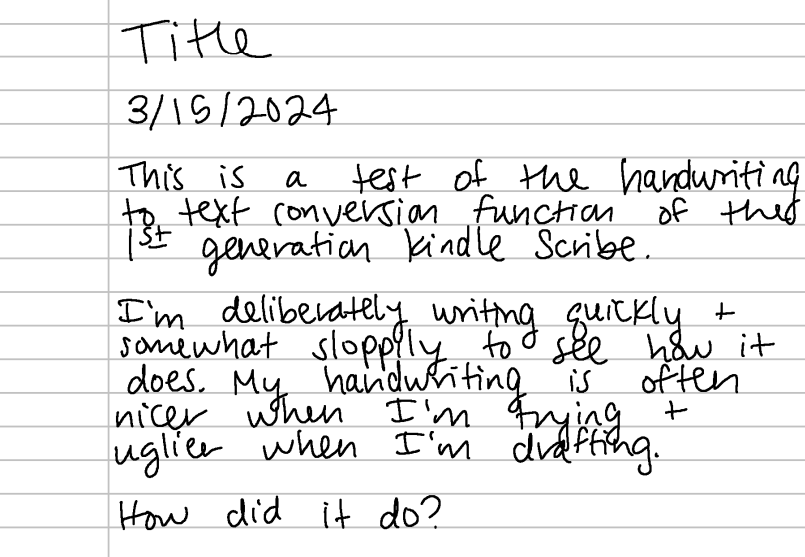
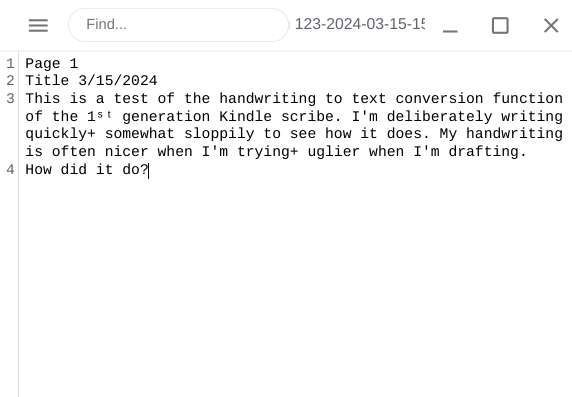
In the past, I would have to laboriously type up everything I had handwritten to be able to use or share it beyond my personal use (e.g. sharing notes from a training or conference, drafting a piece of writing). Now, with a few taps, I can send my handwritten pages converted to text to my email.
The handwriting to text conversion option on the Scribe, while far from perfect (especially when trying to translate my furious scrawl), shortcuts that process considerably. It’s easy to set up and a fairly accurate conversion, considering the chaos of my scribbling during conference sessions and drafting.
Problem: Can’t write on all books
The marketing could be clearer on this one. While you can use the classic highlight and sticky note features on any book in your Kindle Library, you are not able to scribble notes on the text or even in the margins unless the ebook is specifically equipped for that or if you have it in PDF format. This is something that I hope the developers improve on in future updates or models of the Scribe.

That said, if you have a PDF you’d like to annotate, you can easily send it to your Scribe and mark it up to your heart’s content. The PDF will appear in your Kindle Library like an ebook rather than in your Notebooks section of the Scribe. Notebooks that you create are housed in a different part of the app from your ebook and audiobook Library and can be scribbled on and edited freely.
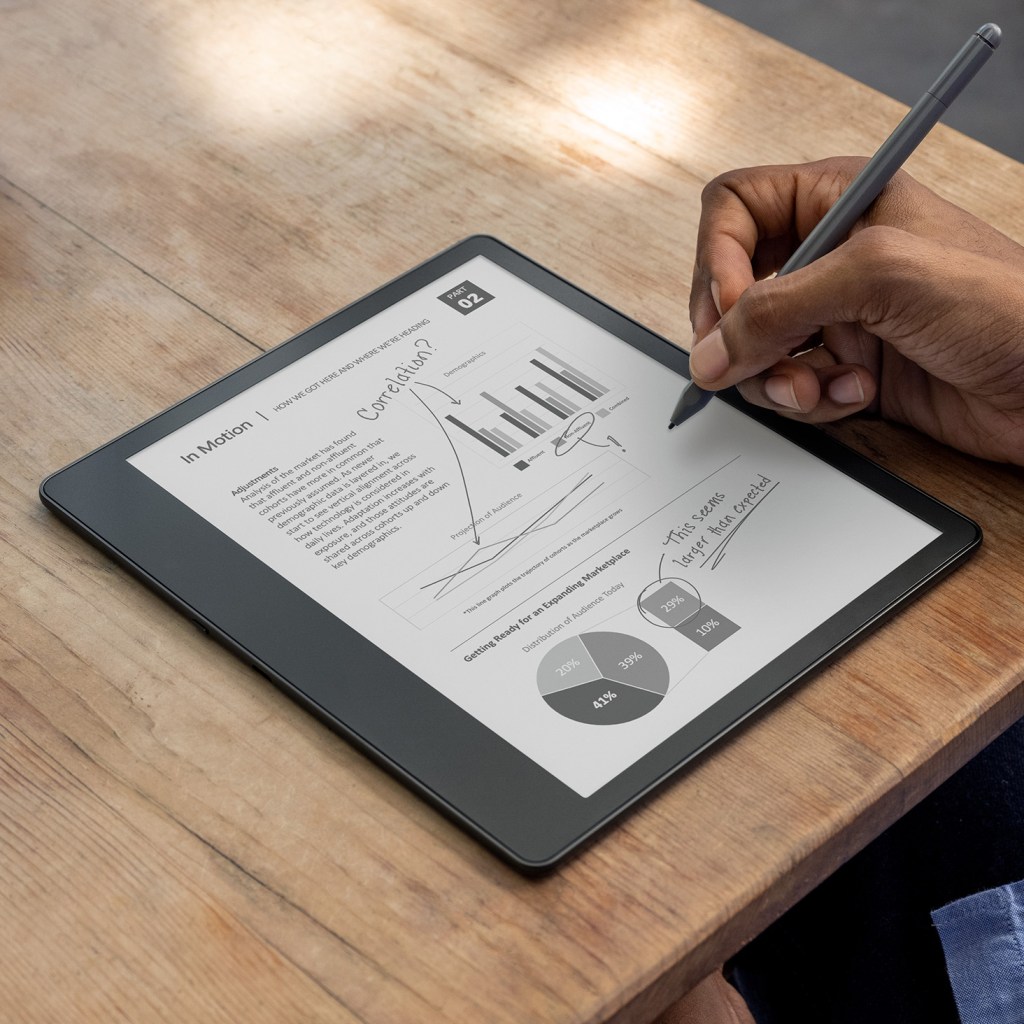
Perk: Smooth writing experience
I splurged on the premium pen, so I can’t speak to the basic pen yet, but I’m impressed by the accuracy and smoothness of writing with this pen.
You can switch writing modes with a quick tap of the menu bar, which includes: pen (pen, fountain pen, marker, or pencil with adjustable thickness), eraser, lasso (cut/paste/resize), highlighter, undo, redo, and a pointer finger for your basic clicking around.
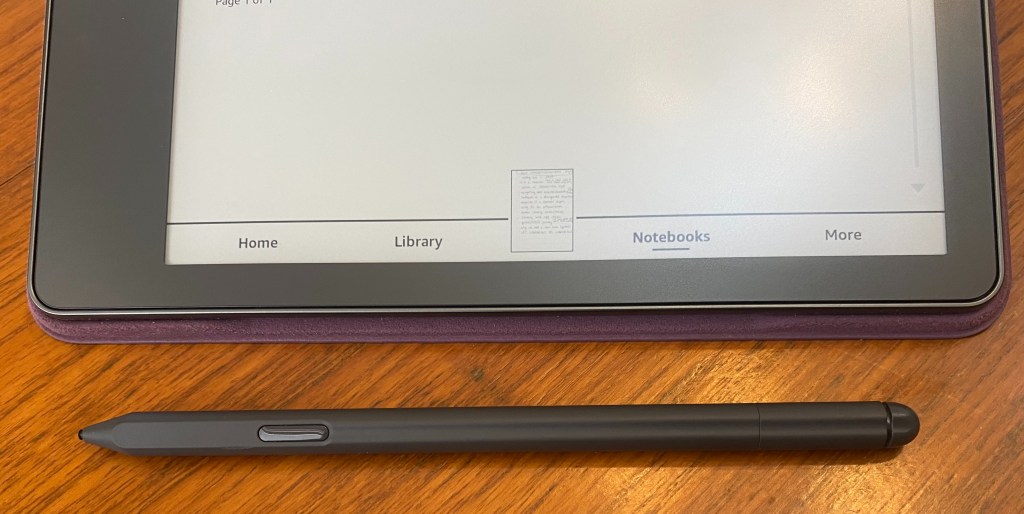
The premium pen has a built in “eraser” which feels much more natural than switching via a menu and requires no adjustment from what I’m used to doing with a real pencil. The basic pen doesn’t have this feature.
Problem: Pen needs work
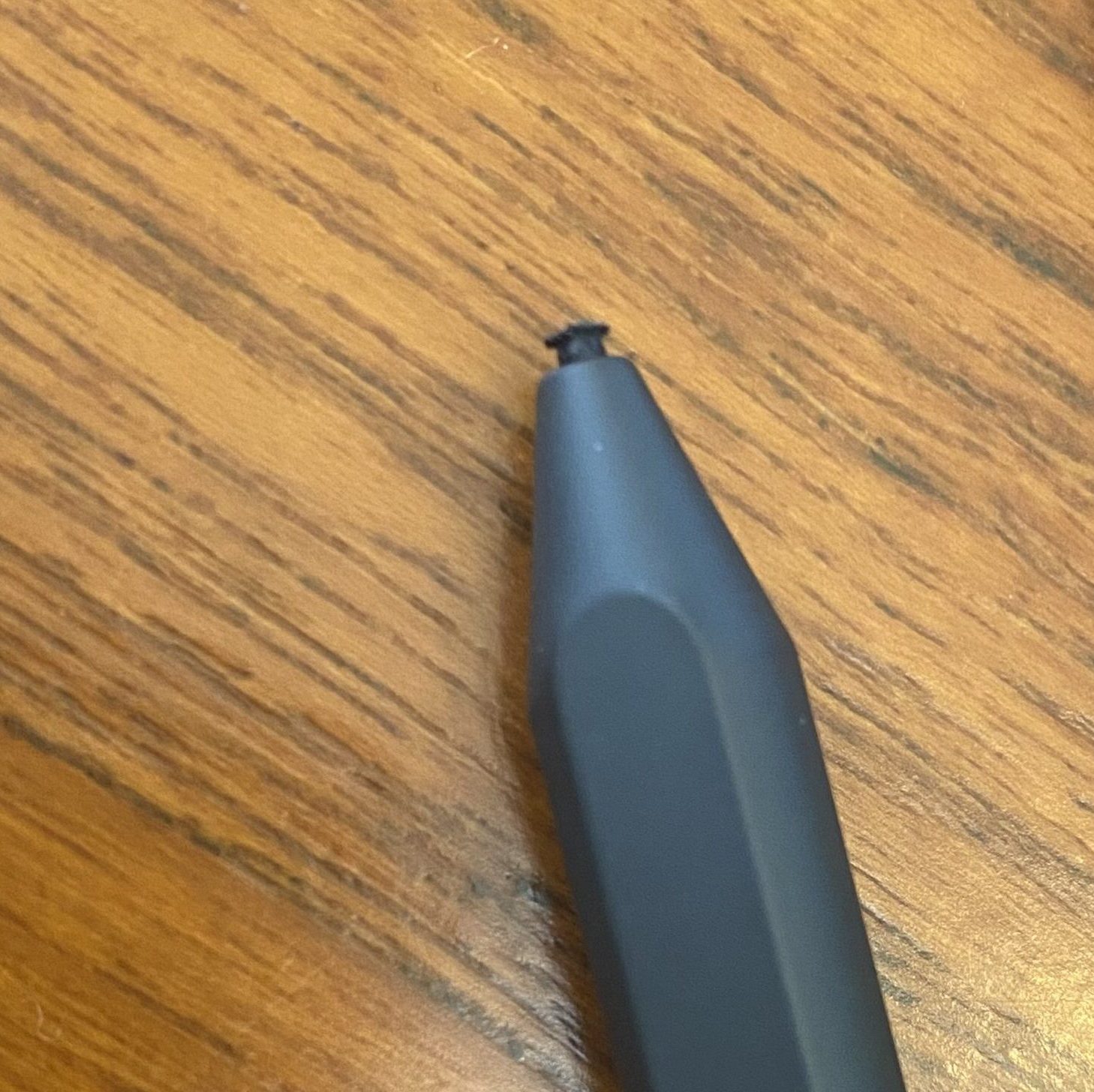
The pen is nice, but definitely still in its early drafts. It is not ergonomic in the slightest (again, talking about the premium pen, but I’d imagine the basic isn’t any better). For the price, I would at least expect some kind of comfortable grip, but it looks and feels like a regular plastic ink pen, if a little weightier than your basic BIC. It also has a ridge along the side that makes the grip even worse, at least for me. (I also don’t hold my pen correctly, so maybe the ridge is a me problem.)
The pen tips, while easy and relatively affordable to replace, wear out more quickly than expected. That said, I know I press down harder than I should when I write, and I still get 50-100 notebook pages of writing with each pen tip.
Perk: Like writing on paper
While there is an adjustable backlight on the Scribe, in most settings, I turn it all the way off to give my eyes a break. I get enough screen strain and bluelight during the work day, so I cut back where I can. Unlike a phone or computer screen, when the backlight is off, the Kindle Scribe screen is still not only legible and glare-free, but it actually reads like text on paper.
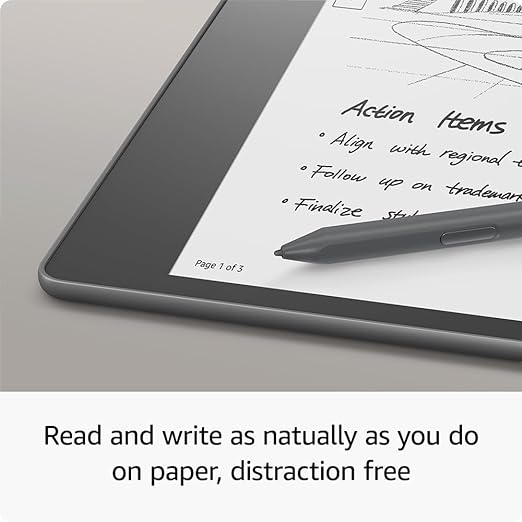
Additionally, the texture of the pen writing on the screen is closer to pen and paper that I expected, with just a slight resistance so it doesn’t feel like writing on a slick tablet screen.
Problem: Glitchy screen
Because I’m a product of the dial-up internet days, I am generally very patient with technology, so the glitchiness of the Scribe doesn’t bother me as much as it might others.
My experience has been that the screen freezes on me at least daily, sometimes within minutes of me turning on the device. I can usually resolve the issue by turning the screen off with a quick push of the power button on the side, and then turning it back on the same way. Occasionally, I have to hard power down the entire Scribe to resolve the issue, which is more annoying.
Perk: So many uses
The Kindle Scribe is smaller and lighter than a laptop or even a Chromebook, but still a little larger and heavier than I would prefer. I think the trade-off is worth it though; I love that I have access to my ebooks, Audible collection, and digital notebooks all in one device, minus the distractions of a traditional tablet, laptop, or smart phone. And really, the large screen makes it more useful as a notebook device and the Scribe is thinner than many tablets, even with a case on.
Currently, I use my Kindle Scribe for all of the following:
- Reading (ebooks and Audible)
- Notetaking for meetings, trainings, professional development, etc.
- Planning and brainstorming
- Drafting fiction and blog posts
- To do lists
- Lesson planning
- Bible (I purchased and downloaded a PDF of a journalling Bible.)
- Cookbooks – I can write notes and modifications if it’s a PDF.
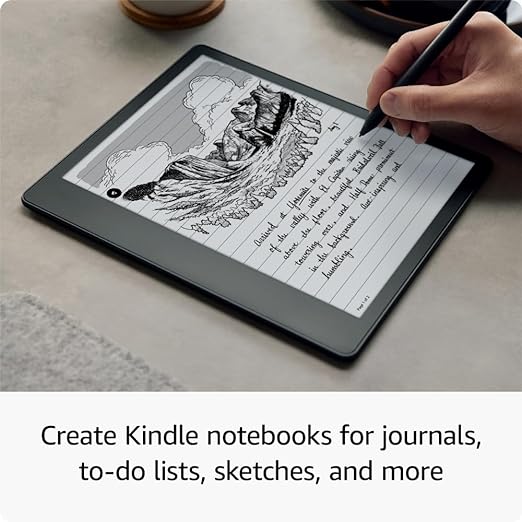
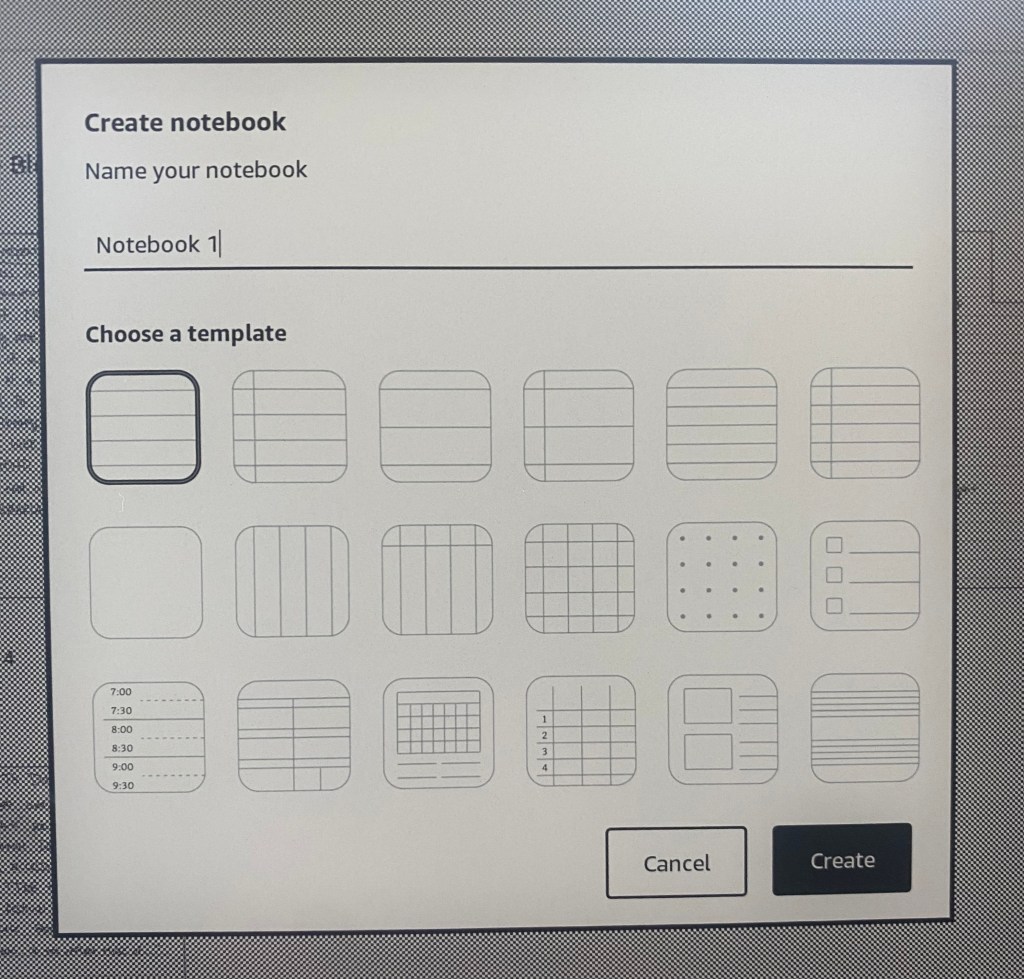
The Scribe has an array of notebook page styles to choose from, including: blank, lined (several options), graph, dot, check list, spreadsheet (I think), daily schedule, weekly calendar, monthly calendar, storyboarding (I think), and blank sheet music (blank staffs, I’m not a composer, so forgive my terminology errors). It’s easy to delete a page or entire notebook, organize notebooks into folders, and switch between notebook page templates.
Problem: Rigid notebook styles
I wish I could have multiple template styles in a single notebook. Currently, that’s not an option. It would be nice to be able to have all the different calendar styles to function as a planner, for example. This seems like an easy fix (I mean, to me, someone who doesn’t even know if the correct term for the person who can fix this is a programmer or engineer or something else entirely), so I’m hopeful they’ll fix this in a future update.
Other Perks
WiFi & Bluetooth Connectivity – You can send notebooks to your email, download ebooks, and more because Scribe is WiFi compatible. With bluetooth enabled headphones or ear buds, you can listen to your Audible audiobooks on your Scribe.
Sustainability – According to the product page on Amazon, the Kindle Scribe has 48% post-consumer plastic and 100% recycled aluminum in the device and the packaging it comes in is 100% recyclable. Plus, you’re cutting down on paper use and disposable pens over time (theoretically).
Other Problems
PDF Link Issues – Some of the links are not clickable when they should be, which is frustrating when trying to navigate quickly between recipes in cookbooks and books of the Bible, for example. This is one of my biggest pain points, but I’m hopeful it will be fixed in a future update.
Grayscale – The screen is in grayscale only with no other colors supported, which is a drawback when you want to enjoy books with illustrations or if you’re inclined to create art in the digital notebooks.
Expensive! – The least expensive option for the Scribe (16 GB, Basic Pen, no cover, without Kindle Unlimited) currently clocks in at $340 before tax when purchased new. When you factor in add-ons or even look at “discounted” bundles, the prices can climb to over $500. Yikes. What I paid for mine was worth it because of how much it’s improved my work flow, but it was definitely a splurge on an educator’s salary.
What do YOU think?
What questions do you still have about the Kindle Scribe? I’d love to answer them if I can.
If you’ve used a Kindle Scribe, what has your experience been like or what else would you add? I know I only scratched the surface in this post. I’m planning to write a post comparing the Scribe to the Rocketbook soon, so keep an eye out (or subscribe for updates if you like what you’re reading).

 paige in the library